Analysis of a Simple Malware
Analysis of Ultima malware
Ultima
Introduction
- This is more of an educational malware. Designed by Crow (a cybersecurity YouTuber). Pls check him out here
- From what I’ve understood, it doesn’t really do anything malicious, it is a tool used to learn malware analysis.
- I haven’t watched the analysis from the video so this is going to be my first time actually analyzing it.
- Again I too am learning as I go so if you find something that is wrong please let me know(without any vitriol, if possible..🥺).
Disclaimer/Warning
I am not an expert in malware analysis nor am I a malware developer, please take my word with a grain of salt and do your own research before doing anything.
I take no responsibility or accountability for the infection of malicious software, programs, or files onto any computer or workstation. These projects are for educational purposes only. I do not condone the development, use, or spreading of programs to intentionally harm assets, networks, or individuals.
I do not own the malware/program nor am I claiming to be the author of the program all rights and ownership go to the person/team who designed it.
Basic Static Analysis
- The first thing that I always check is if the executable is packed or not, packing is the process of compressing(and/or encrypting) an executable. This is usually done by compressing a program and adding a wrapper/stub program to ensure that it can be decompressed before running. Malware authors use this as an anti-analysis technique, by packing an executable, sandbox environments might fail to analyze the malware.
- A helpful diagram to understand packing :
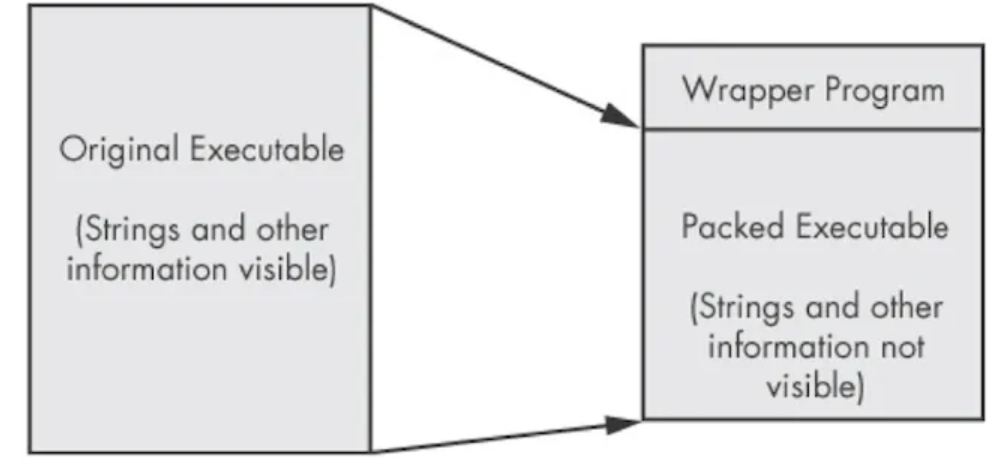
Source: Practical Malware Analysis Book
- To find out if a program has been packed or not we can use a tool called PEid
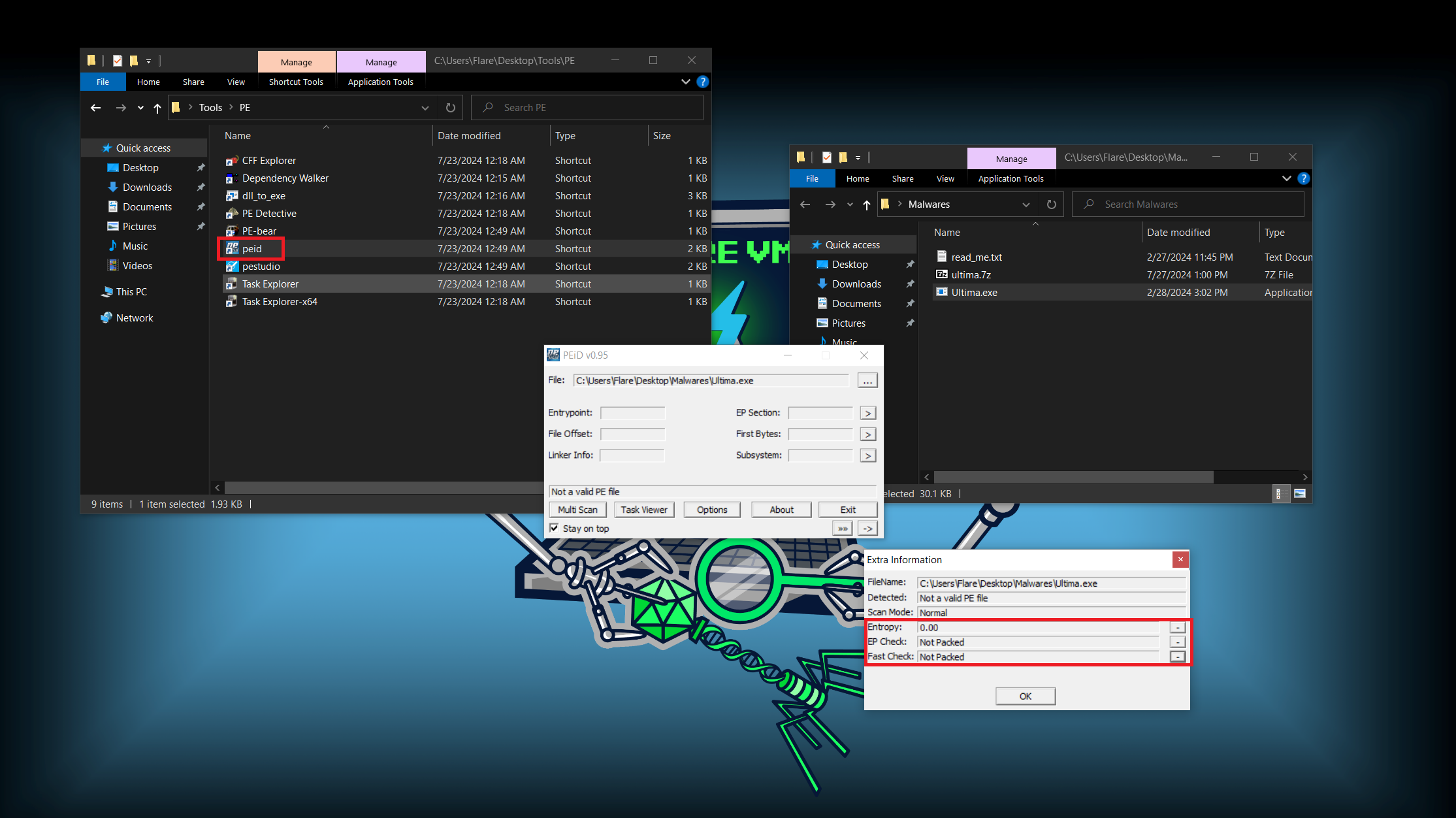
- From the above image we can see that the program is not packed.
- Now, sometimes PEid might not be able to find out if a program is packed or not so we check by manual verification
- To check if an executable has been packed or not I use CFF Explorer, This is a powerful tool that is used for PE editing, but for our purposes, we use it for analyzing PE files. There is also plenty of other information produced by this application
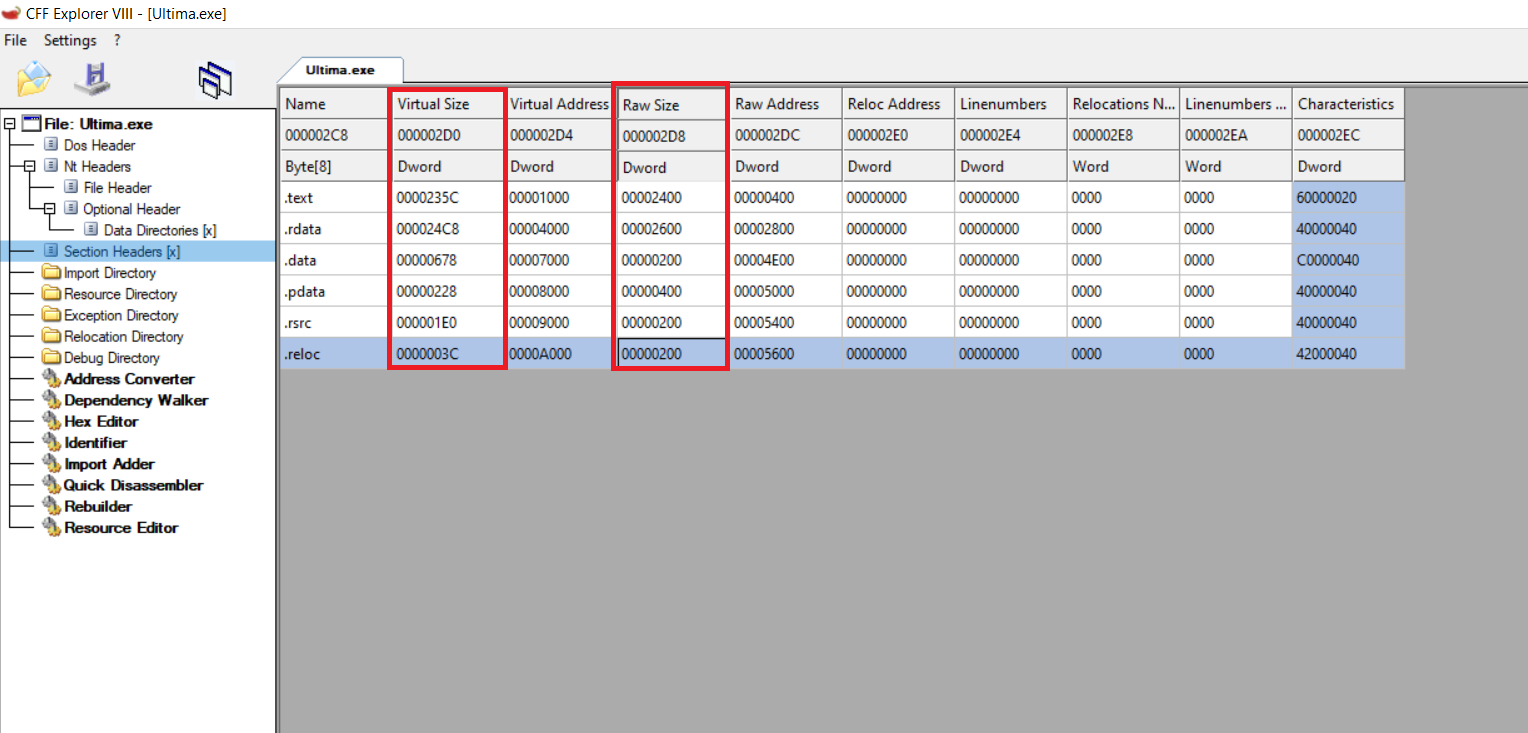
- In the highlighted columns we can observe the virtual size and raw size, virtual size is the amount of memory that a section of the PE file will occupy when it is loaded into memory and raw size is the actual size of the section as it’s stored on the disk.
- We can see that the difference between the sizes in both columns is not that significant, if we find out that an executable file has a bigger virtual size than the raw size then we can safely say that it might be packed.
- In our case, we can see that the difference is not that big, so we can say that this file is not packed.
- Next, we can see the imports and exports of the executable.
- To do this we use a program like dependency walker. This gives us all the imports and exports that are used by the executable (Note: A lot of other programs can be used to do the same thing, I use Dependency Walker because, I used it while reading the practical malware analysis book)
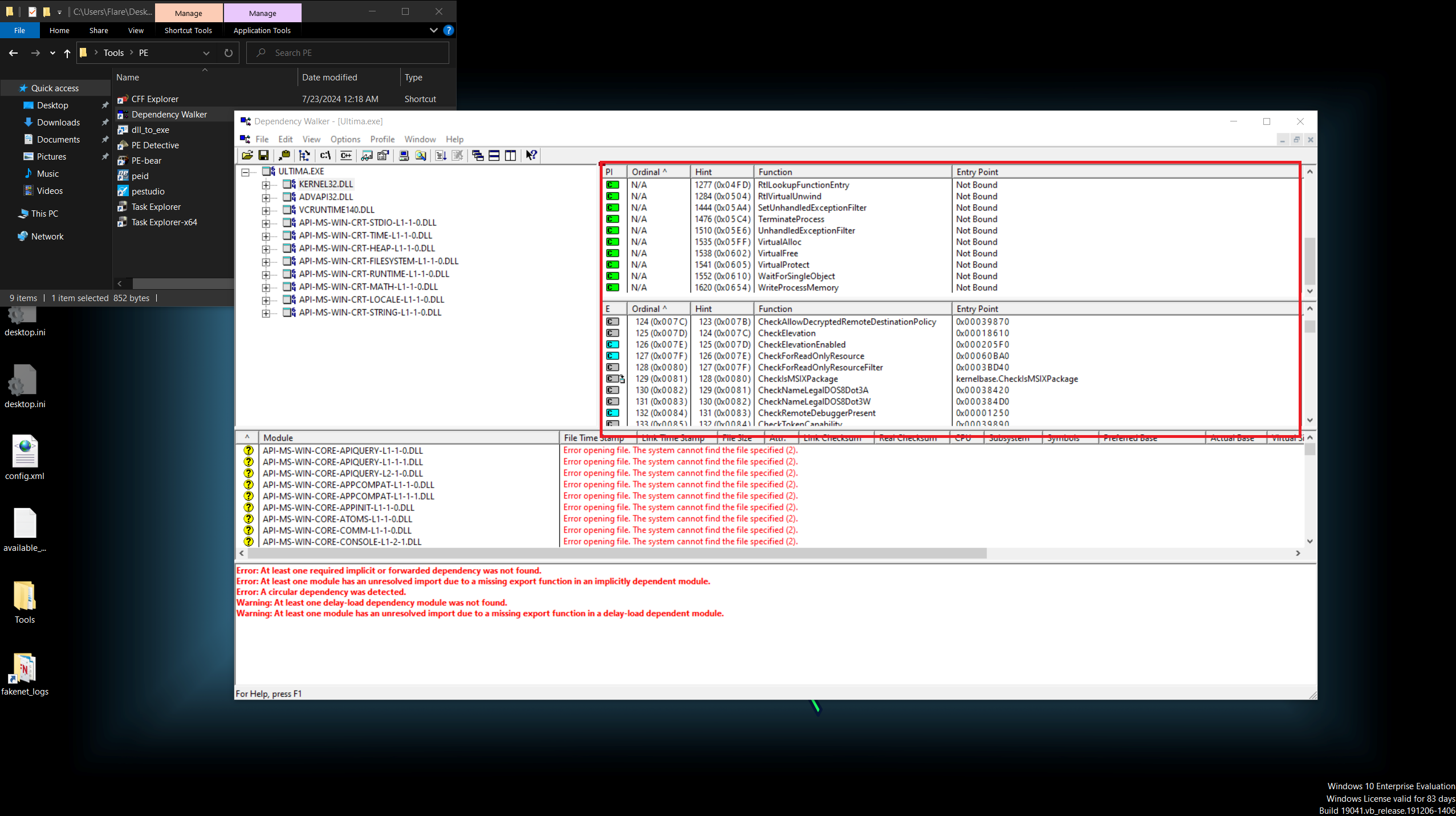
- Again there are many of important info here but we are here mostly for the imports and exports.
- The panel on the left-hand side tells us the libraries that have been used. The important ones here are KERNEL32.dll and ADVAPI32.dll.
- The highlighted parts (right-hand side) are the imports and exports. On the left-hand side, we can select the file for which we want to see the imports and exports, by choosing KERNEL32.dll we can see the imported functions(top-right) and exported functions(top-left).
- There are several red flags and indicators of malicious activity on the imported functions list, especially in the ADVAPI32.dll file, RegGetValueA, RegCreateKeyExA, and RegSetValueExA.
- These functions modify the Windows registry, which is a hierarchical database in Windows with key-value pairs for a lot of Windows settings, it houses information that is vital for the profiles of each user, the applications installed on the computer, and the types of documents that each can create, property sheet settings for folders and application icons, what hardware exists on the system, and the ports that are being used.
- What registry key does it actually modify and what does it actually do? That is something that we cannot ascertain during this phase of the analysis or at least I couldn’t.
- Now, these are just some of the tools and techniques that I used for static analysis. Some other tools I use are Floss and Capa.
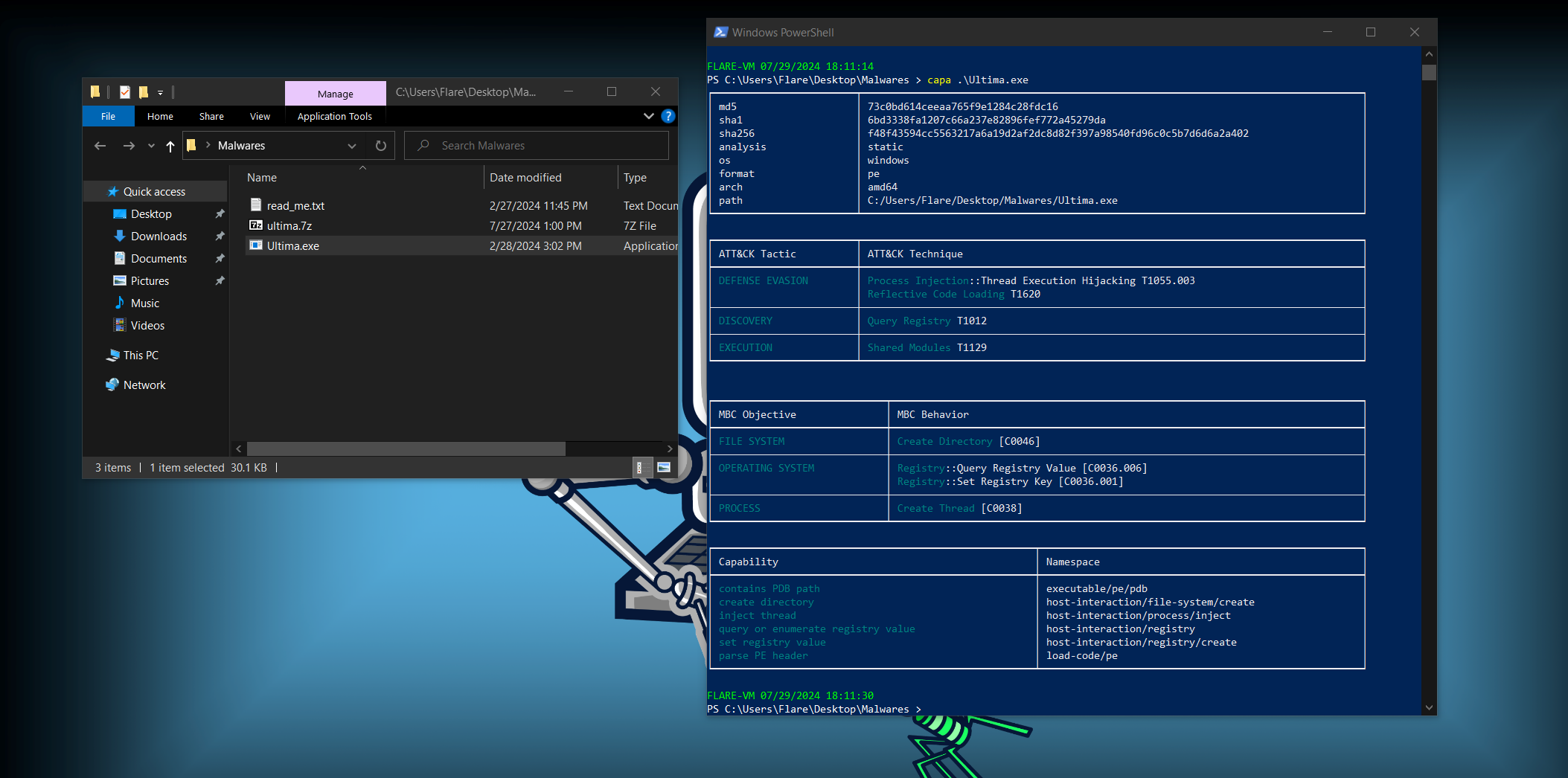
- capa is really interesting as it analyzes the executable and maps the techniques used to the MITRE ATT&CK Framework. (also try using the flags -v and -vv in this command)
1
 capa <filename>
Floss can be used to extract strings from an executable, think of it as a beefed-up version of the strings command.
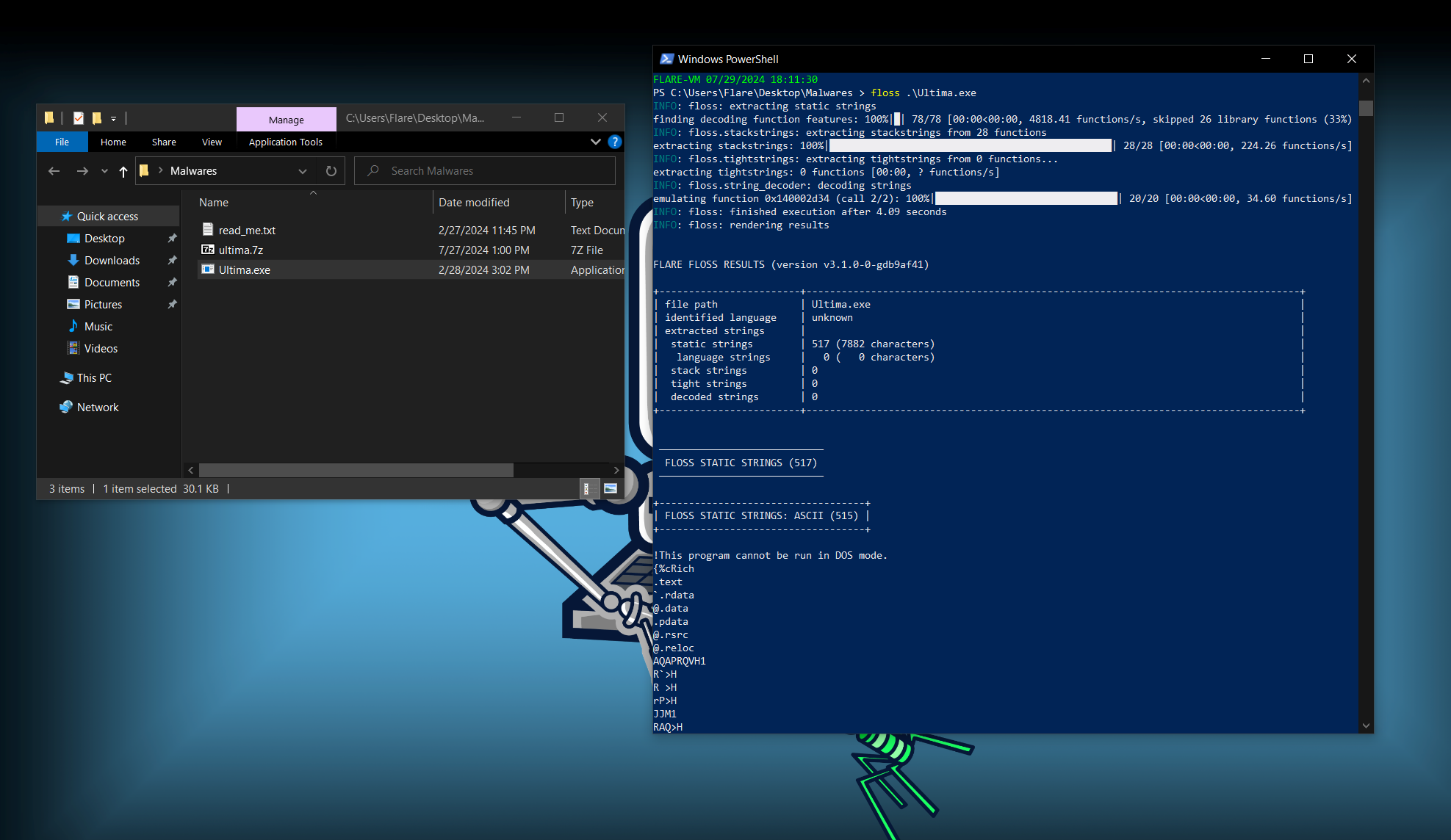
- There is plenty of useful information, like the DigiCert certification, this is a fake certificate that we can actually see in the properties of the executable. We can see ASCII art for the program, a path which contains the .pdb (C://Users//hepha//Documents//Programs//maldev//Ultima//x64//Release//Ultima.pdb) file for this program, some strings(duh..), mail address, etc. there may also be other info here but I couldn’t find anything else that is interesting.
- Now we can move on to the next phase. Basic Dynamic Analysis.
Basic Dynamic Analysis
- Before we run the malware, we need to set up a few things, So that we can collect information.
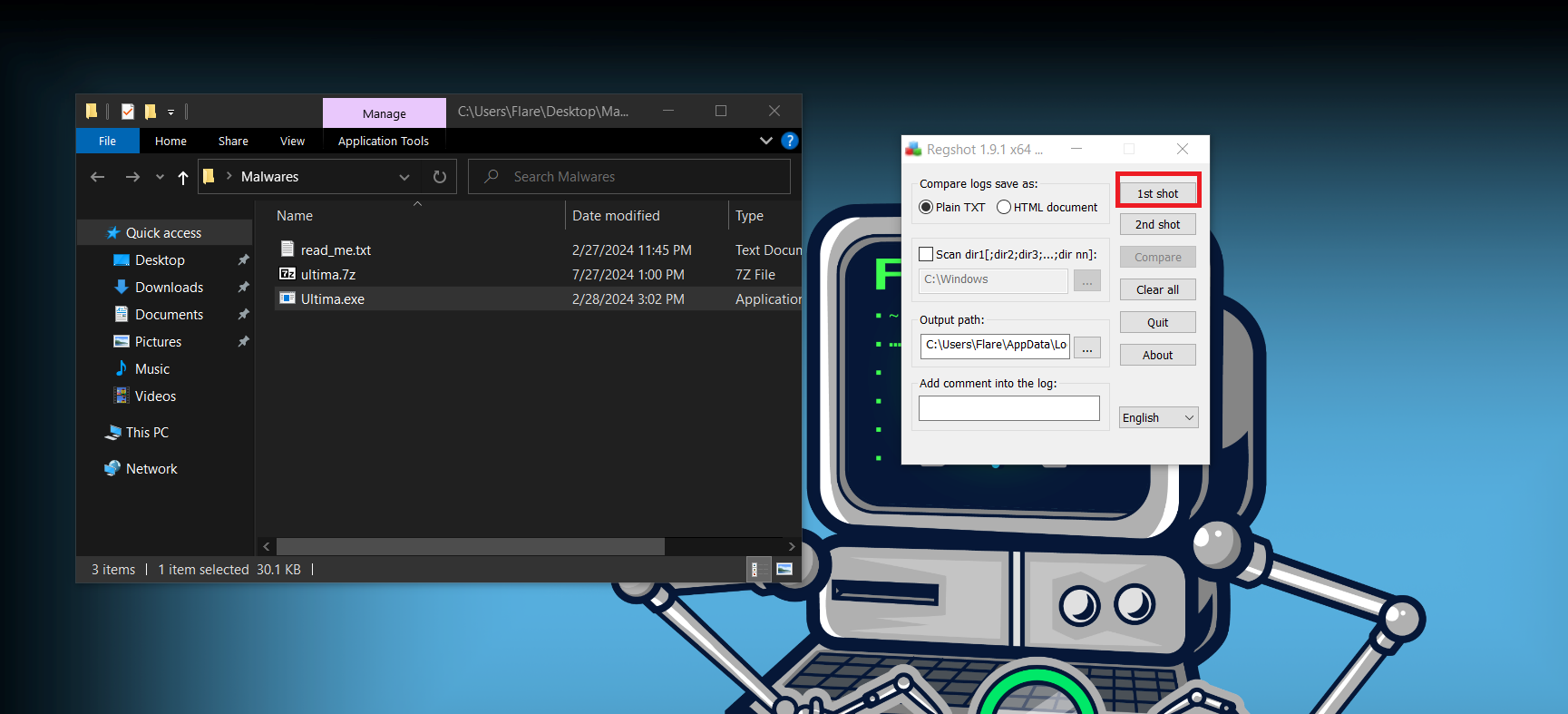
- First open regshot. This is a tool used to take a snapshot of the current state of the registry, we do this to later take a snapshot of the registry after the malware has been run and compare both the snapshots.
- After opening the regshot take the first shot by pressing the 1st shot button.
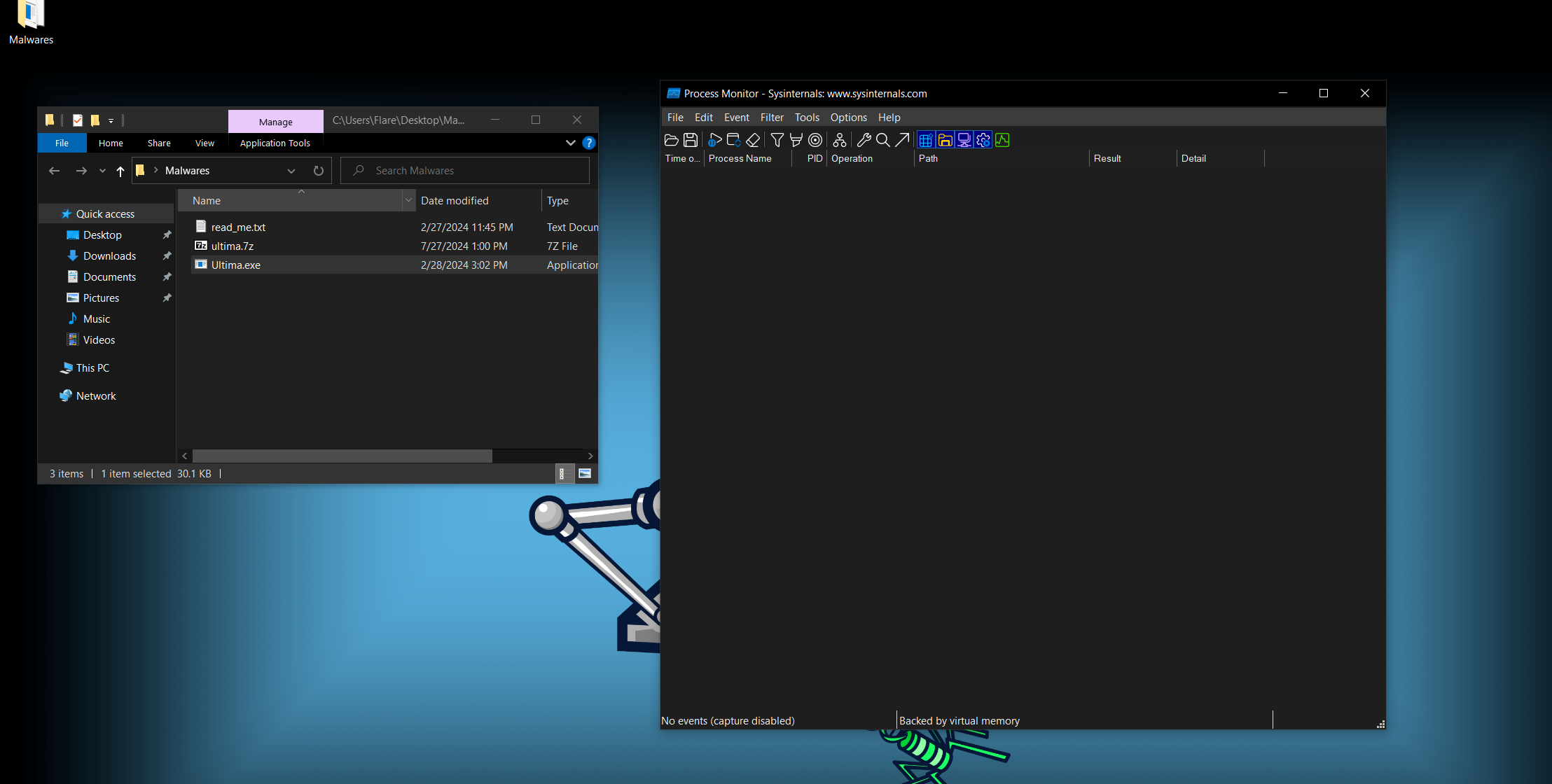
- Next open Process Monitor or Procmon, this is a powerful tool used to see in real-time what processes are being run currently and what actions the processes are doing.
- Note: This tool is really powerful and can potentially crash or brick your VM.
- After opening procmon press Ctrl + E to stop the capture, you can also press the capture button on the tool bar. and press Ctrl + X to clear the captured processes.
- Now your current window should look something like this:
- Now open process explorer, this is also a Windows Sysinternals tool like procmon which can be used to view the parent and child processes of all the processes.
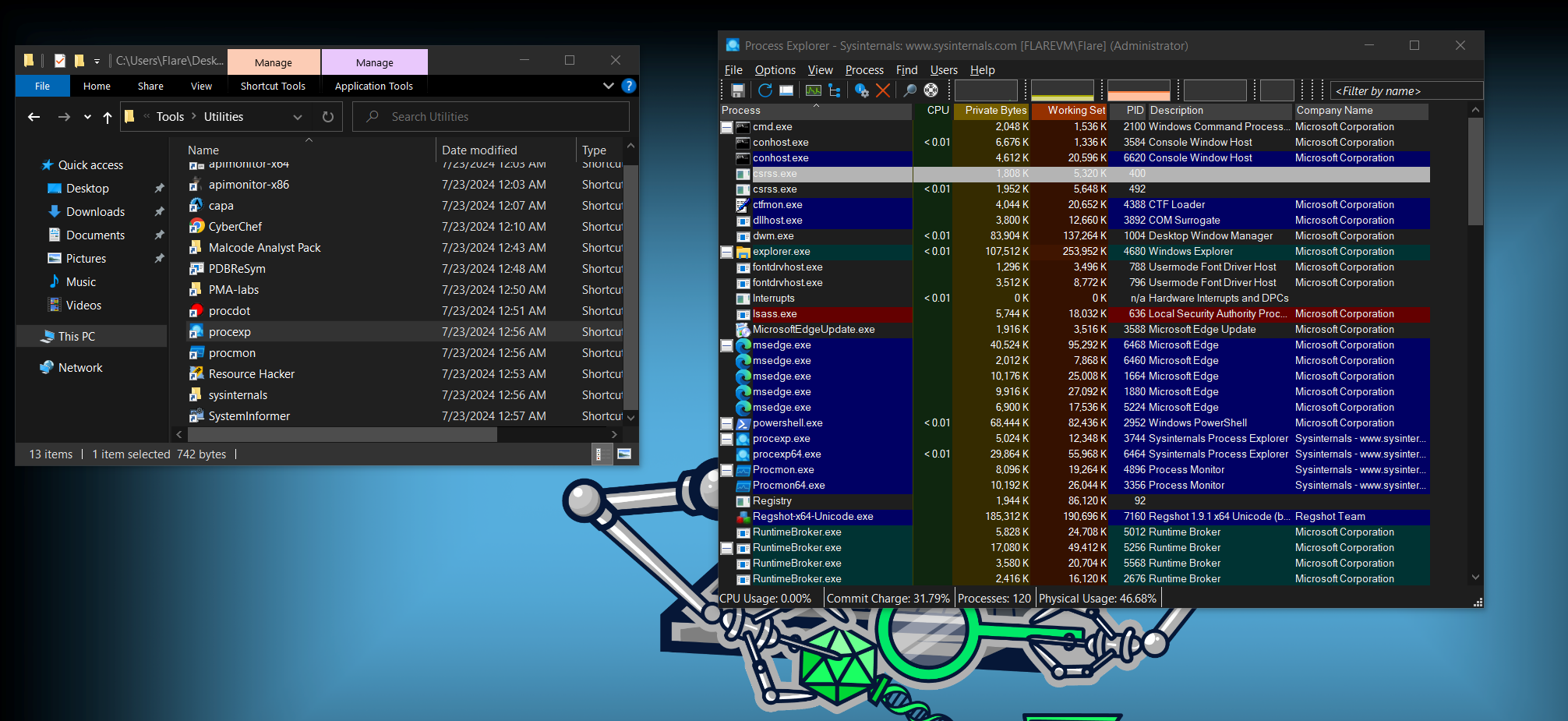
- Finally, we can launch the malware(make sure you have a snapshot of the machine).
- Right before you run the malware, open up procmon and press capture.
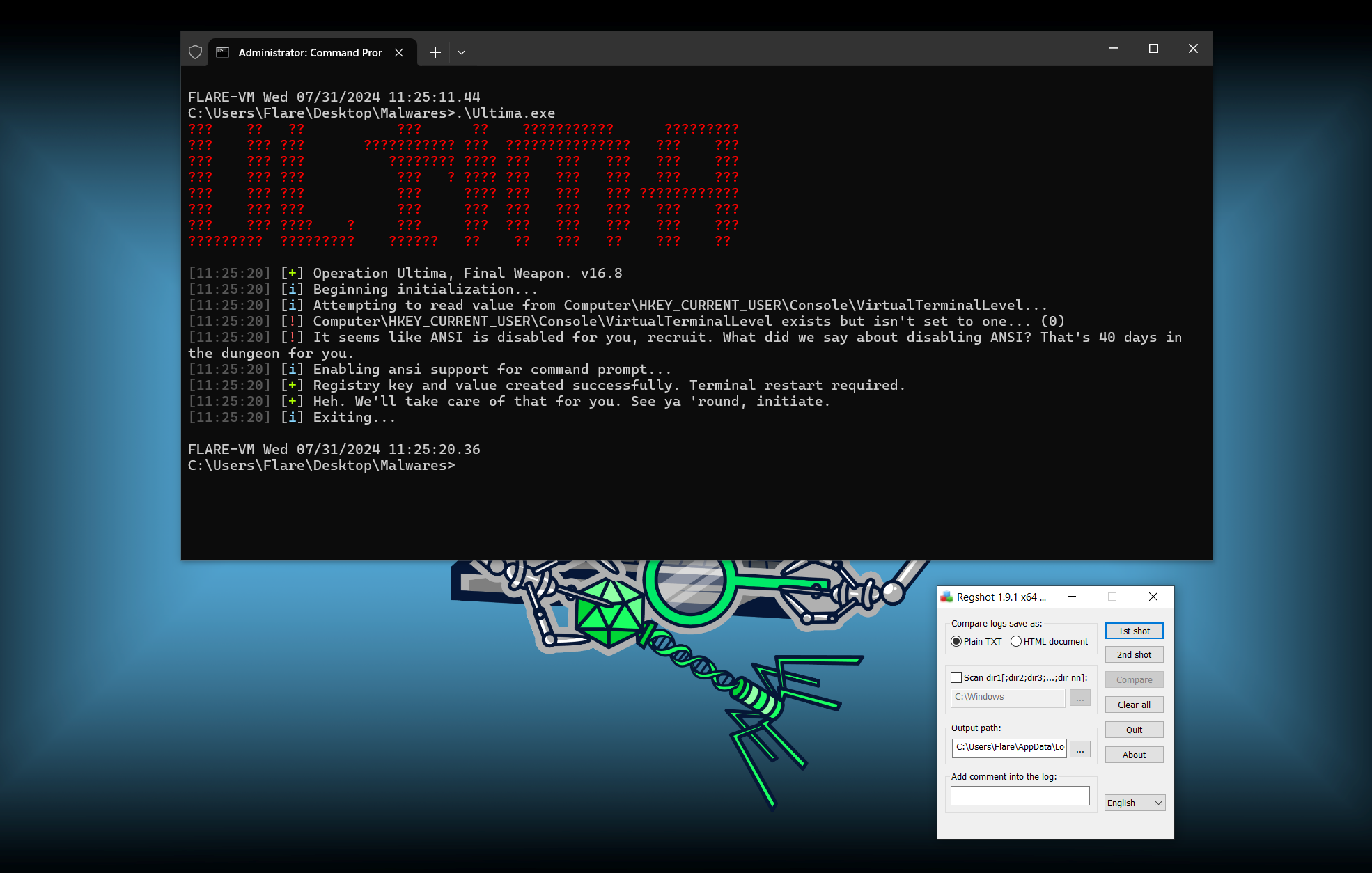
- After the malware has been run press the 2nd shot button on reshot
- you can also view if there has been any process being spawned or not in the process explorer.
- As you can see, this malware tells us exactly what it is doing, it is setting a value of 1 for this HKEY_CURRENT_USER//Console//VirtualTerminalLevel key, now other malware won’t be this clear about what they are doing, In fact, the authors will try to make it as difficult as possible for analyst, so you might not even see anything.
- In procmon press the filter button(The funnel icon) or Ctrl + L and the conditions “Process name is Ultima.exe” and include it before clicking apply.
- Now we can see all the things the executable has done.
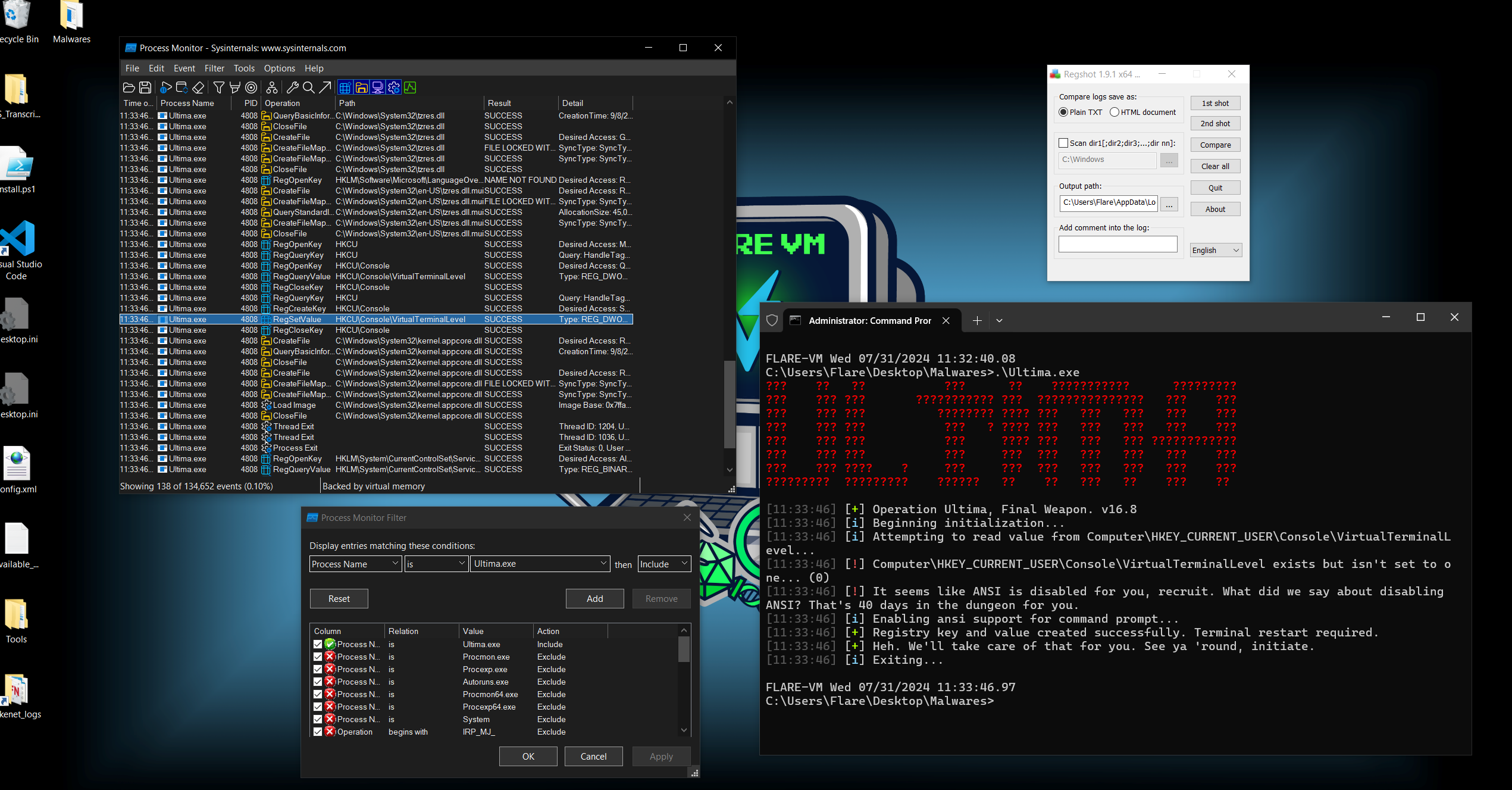
- We can see the RegSetKeyExA used on the VitualTerminalLevel. Now searching on the internet gives us the purpose of this key, it is used to enable ANSI color codes. ASCII art, and the status codes that have been color-coded use this key.
- Now, click on compare and output on regshot, this will give us a text file of all the modified keys in the registry.
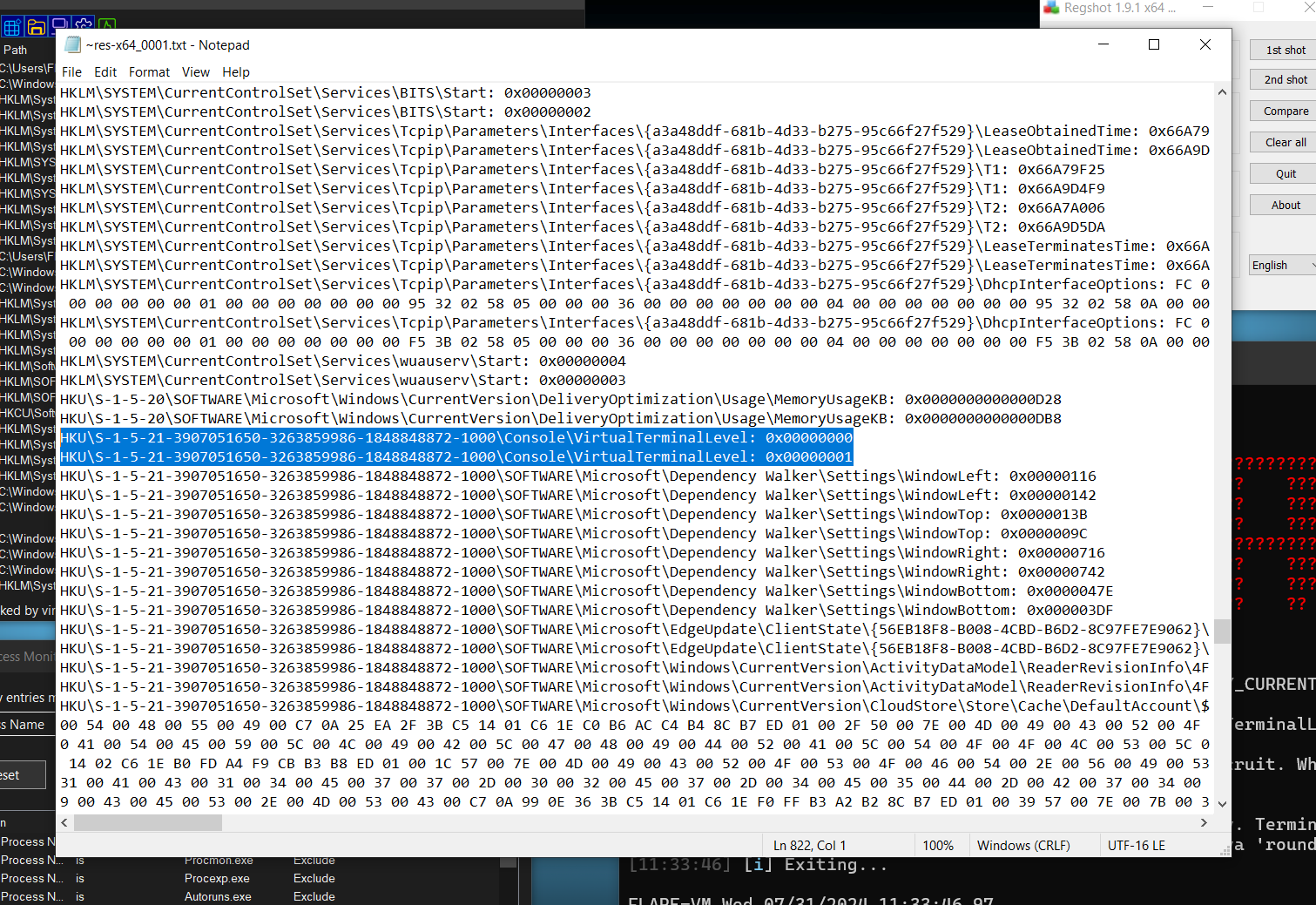
- In in cmd panel, we can see that the program wants us to restart the terminal. So we close it and open it again.
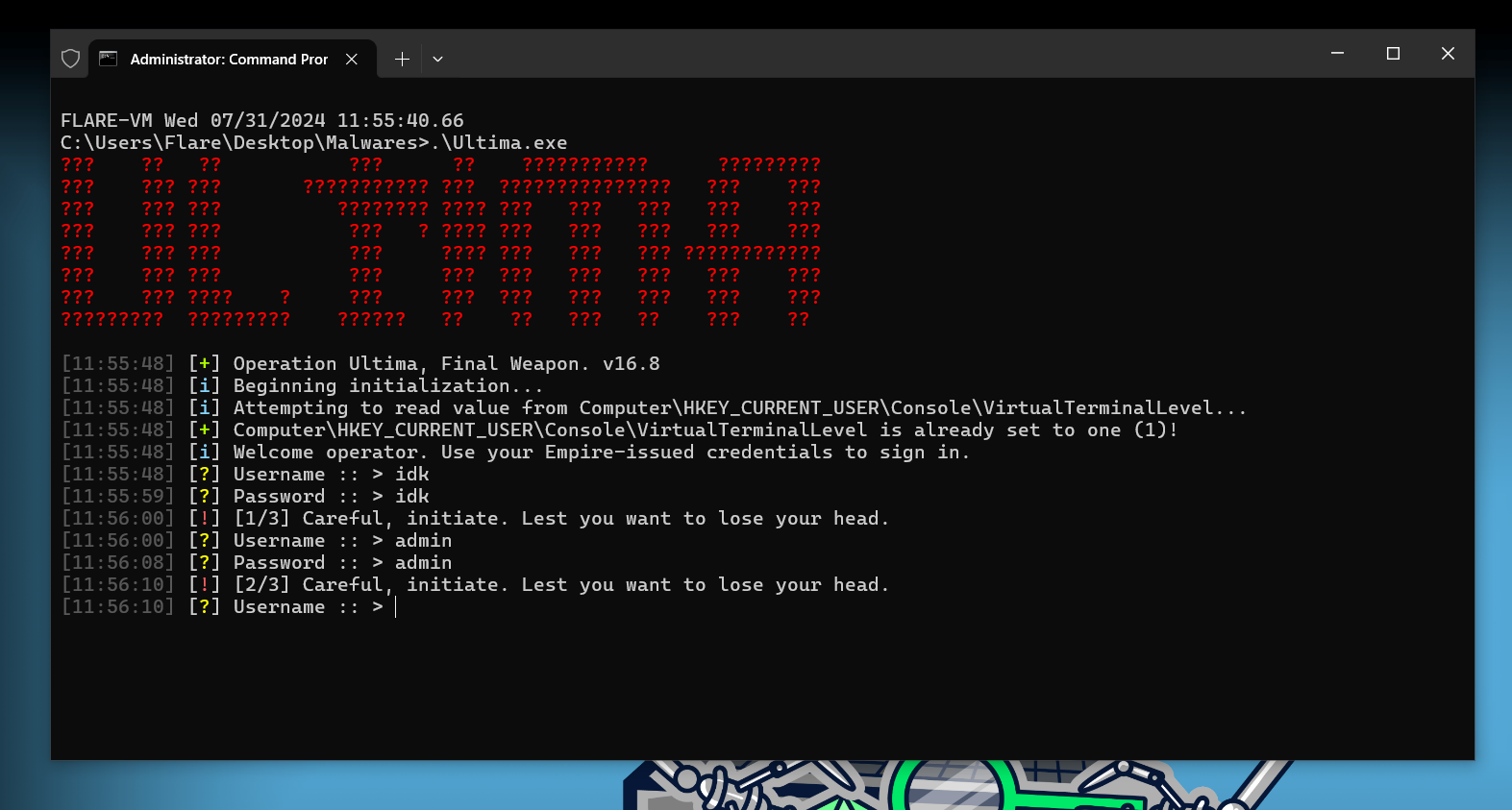
- It asks us for some credentials and it also seems like we also have a limit to the number of attempts, now you could probably find the strings without reversing the executable but I like reversing a bit more, so let’s move to the next stage in our analysis.
Advanced Static Analysis
- Open the executable in a disassembler, you can use anything you like, but again due to the PMA book, I’m comfortable with IDA pro.
- Once you open the executable, you are going to see a lot of information.
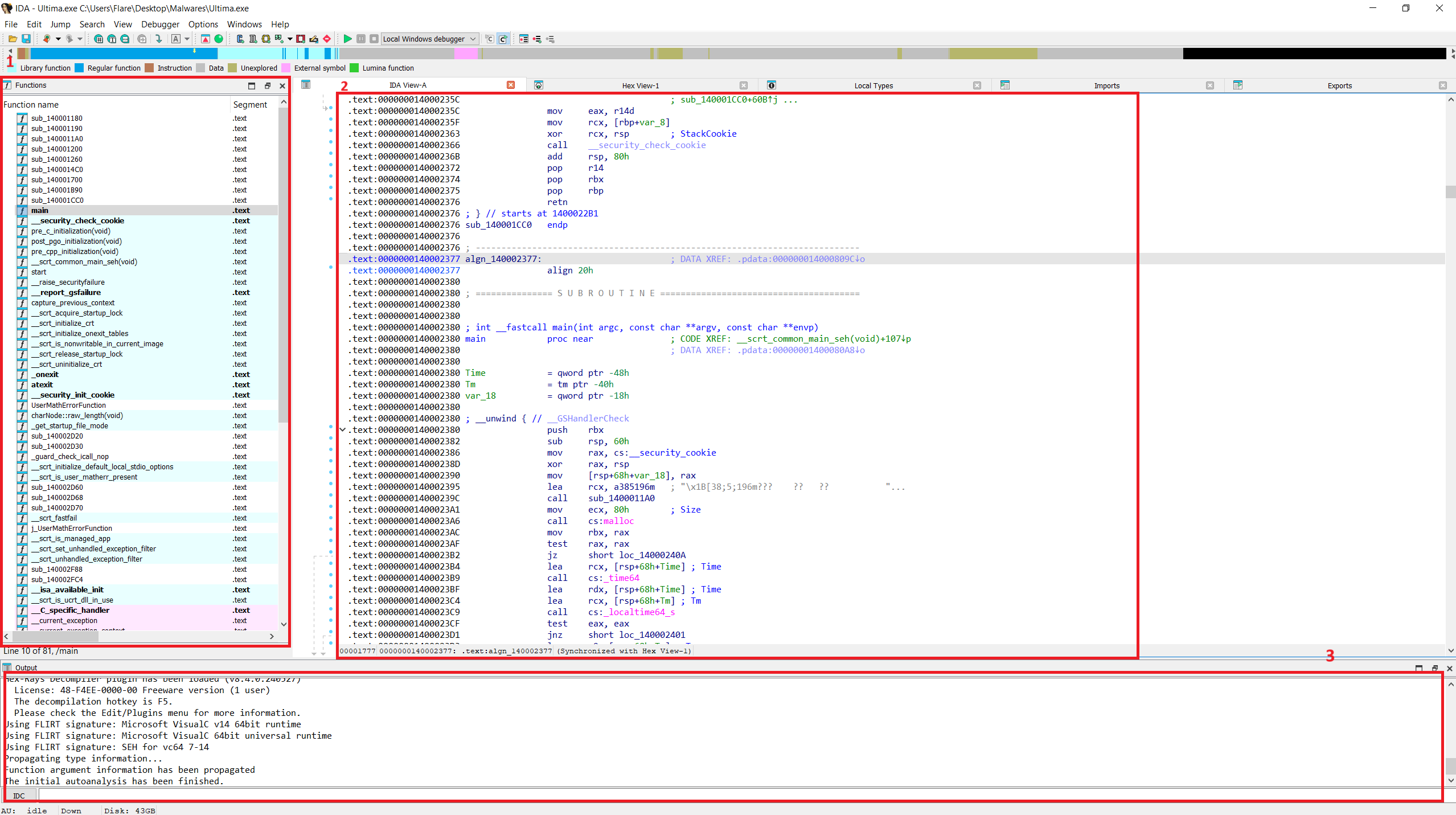
- let’s break down what these windows actually are:
- This contains all the functions that are in the executable.
- This is the actual disassembly window by pressing space we can also enter graph mode(my preferred mode), which presents us with a flow chart of the function currently selected.
- This is IDC, IDA pro’s scripting engine is not very useful for us now, but it is a really powerful tool
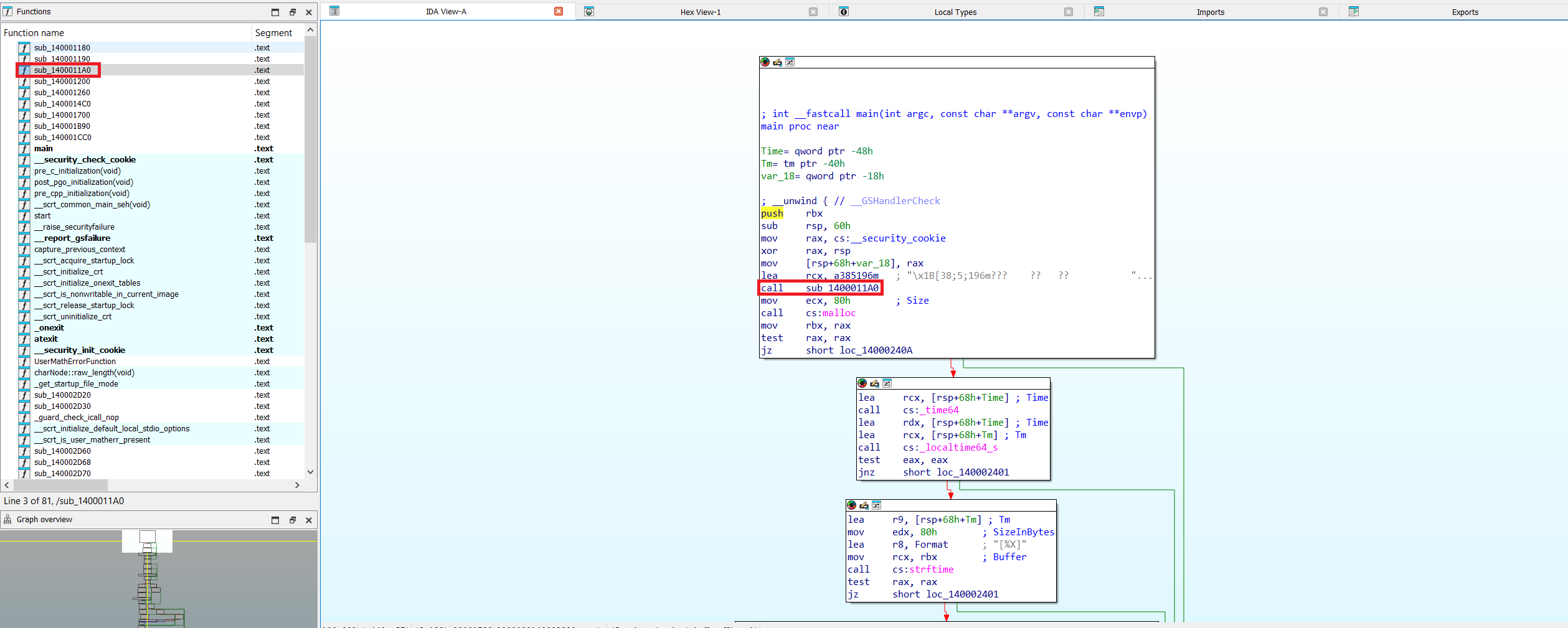
- For our malware we can see a call to a subroutine(or a function) right after a lea instruction, examining this function would tell us that this is a print function. So we can rename the function in the function window (left-hand side)
- If we move through the functions, we can see the string “Operator. Use your empire issued credentials…” (at sub_140001700) so we can assume that next there would be a check for the credentials, i.e., username and password.
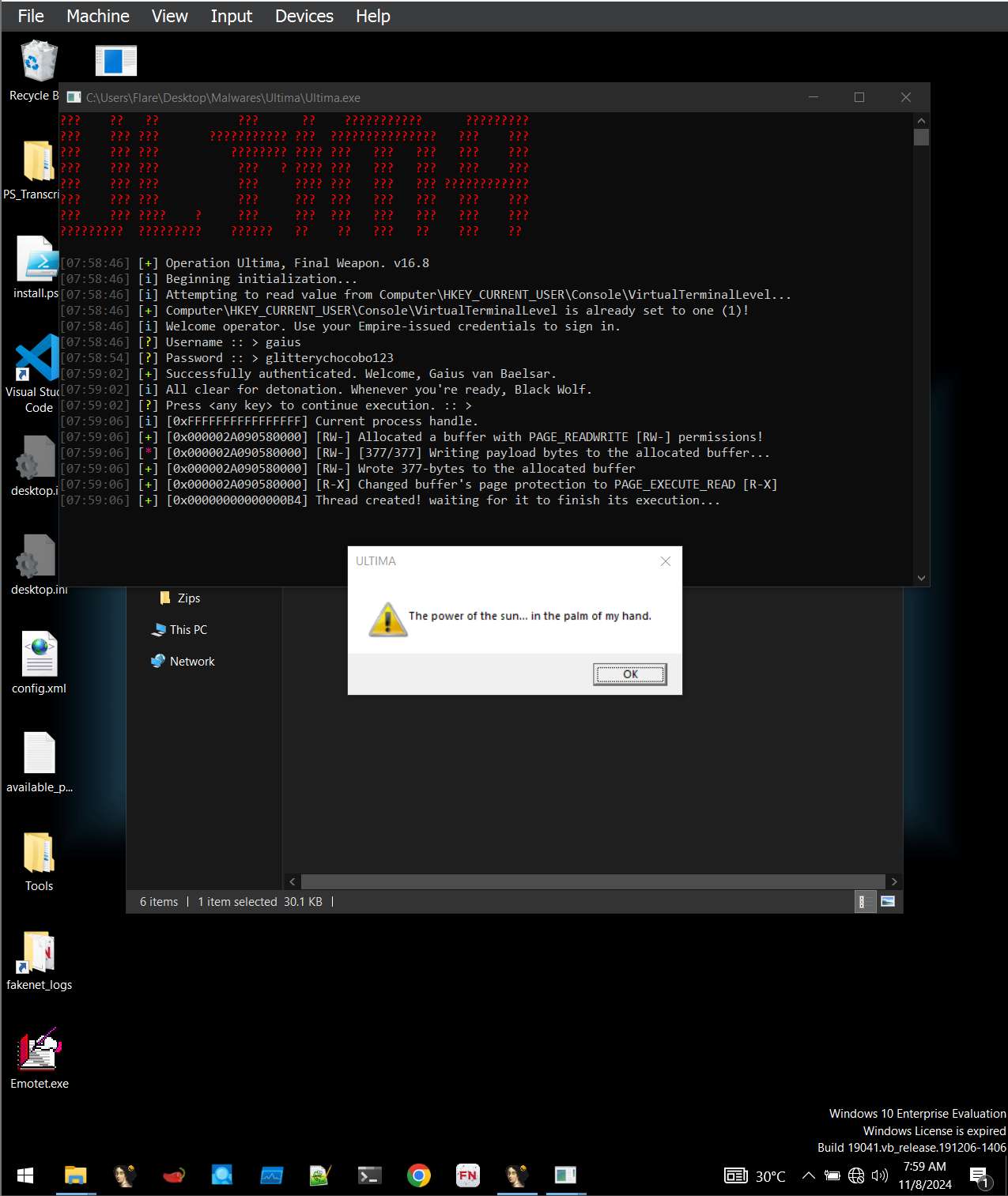
- Going through the function, we can find out that the username is “Gaius”(although it’s never compared with anything) and the password is “glitterychocobo123” which is being compared using strcmp to the user input.
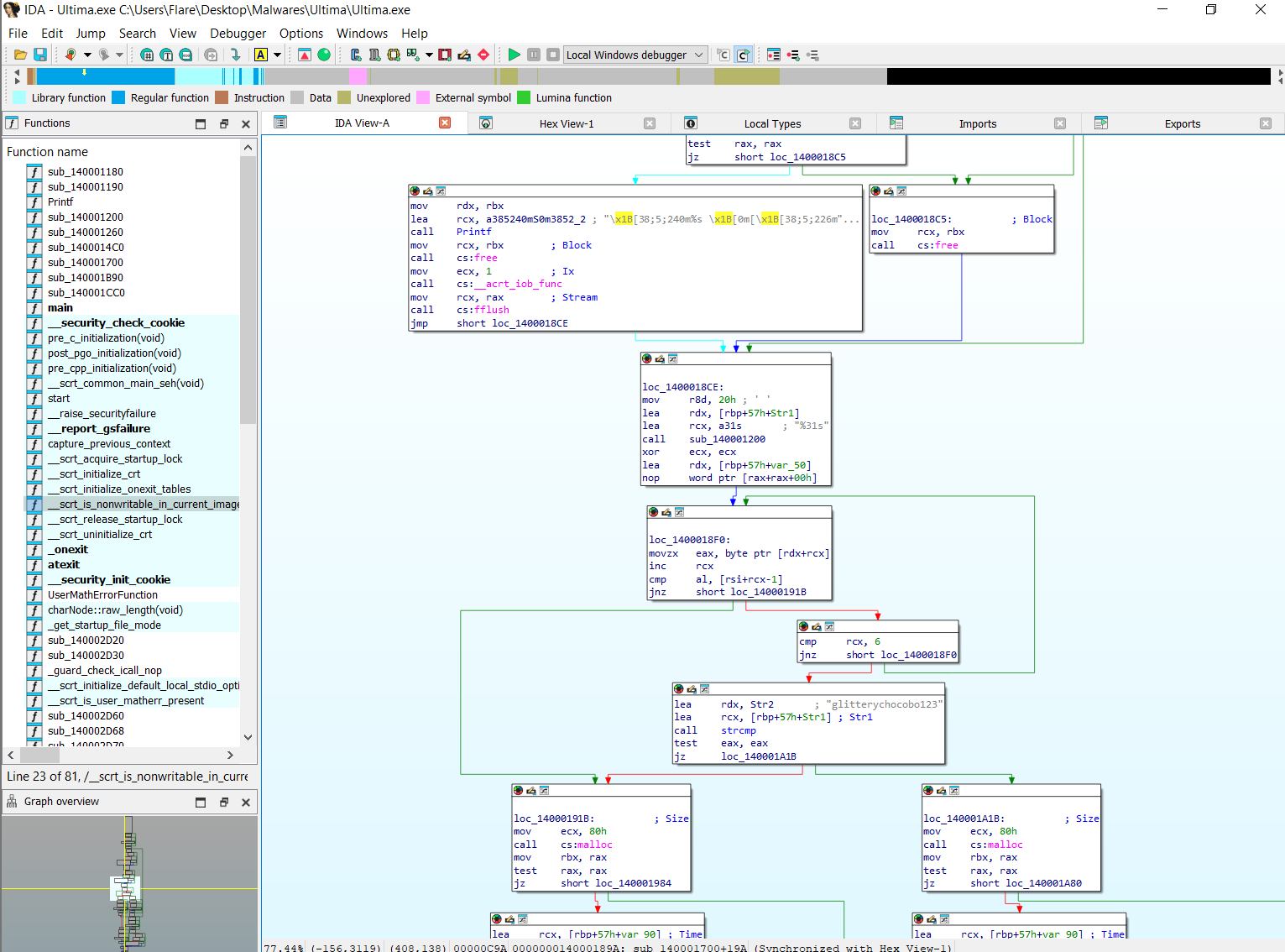
- There are also a number of attempts to this login, the program checks if the credentials are correct for 3 attempts after that it exits.
- After the successful login, it calls another function that does a bit more interesting things.
- In sub_140001CC0, we can observe a call to VirtualAlloc, this, as the name suggests, allocates space on the memory of the calling process.
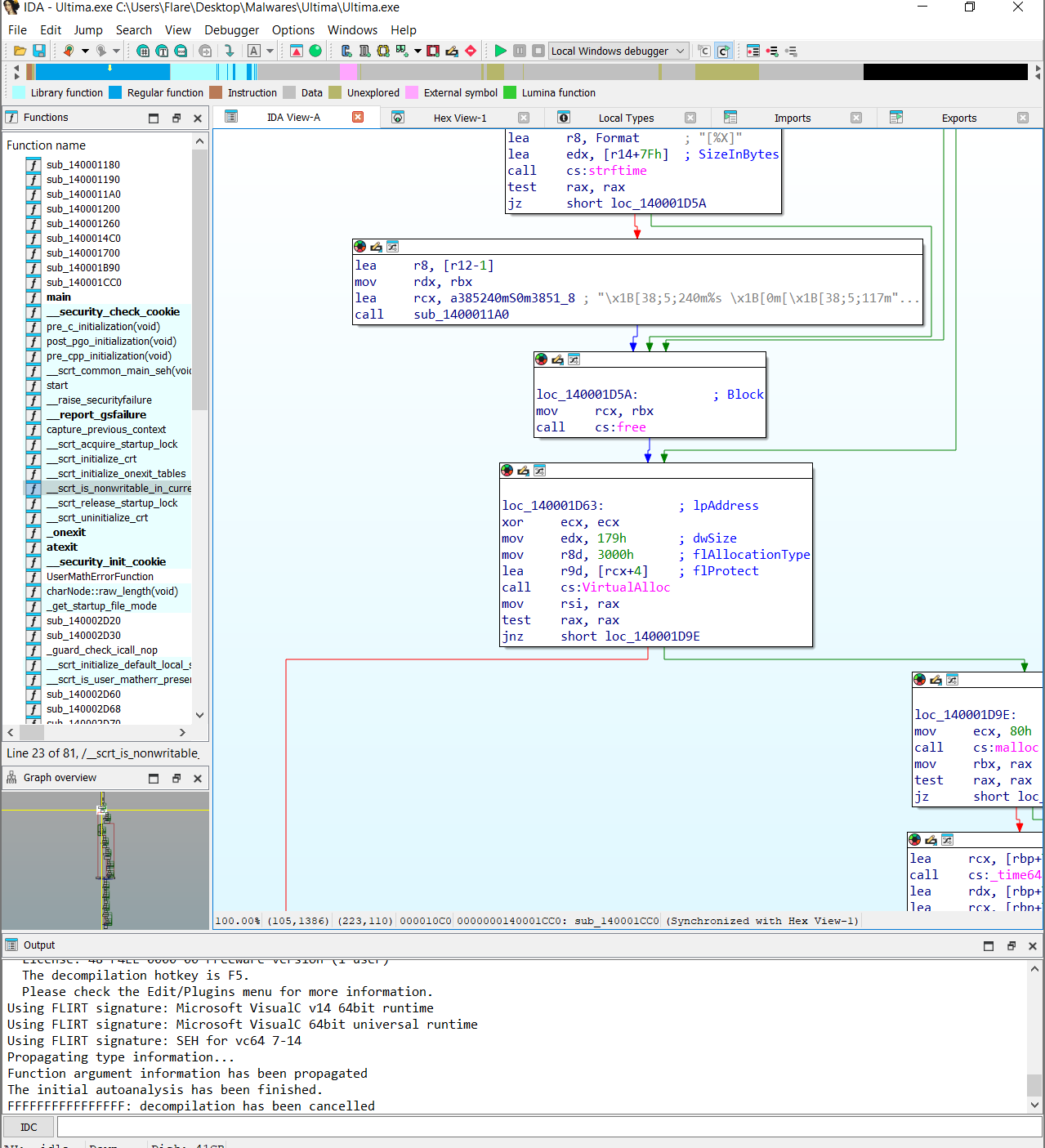
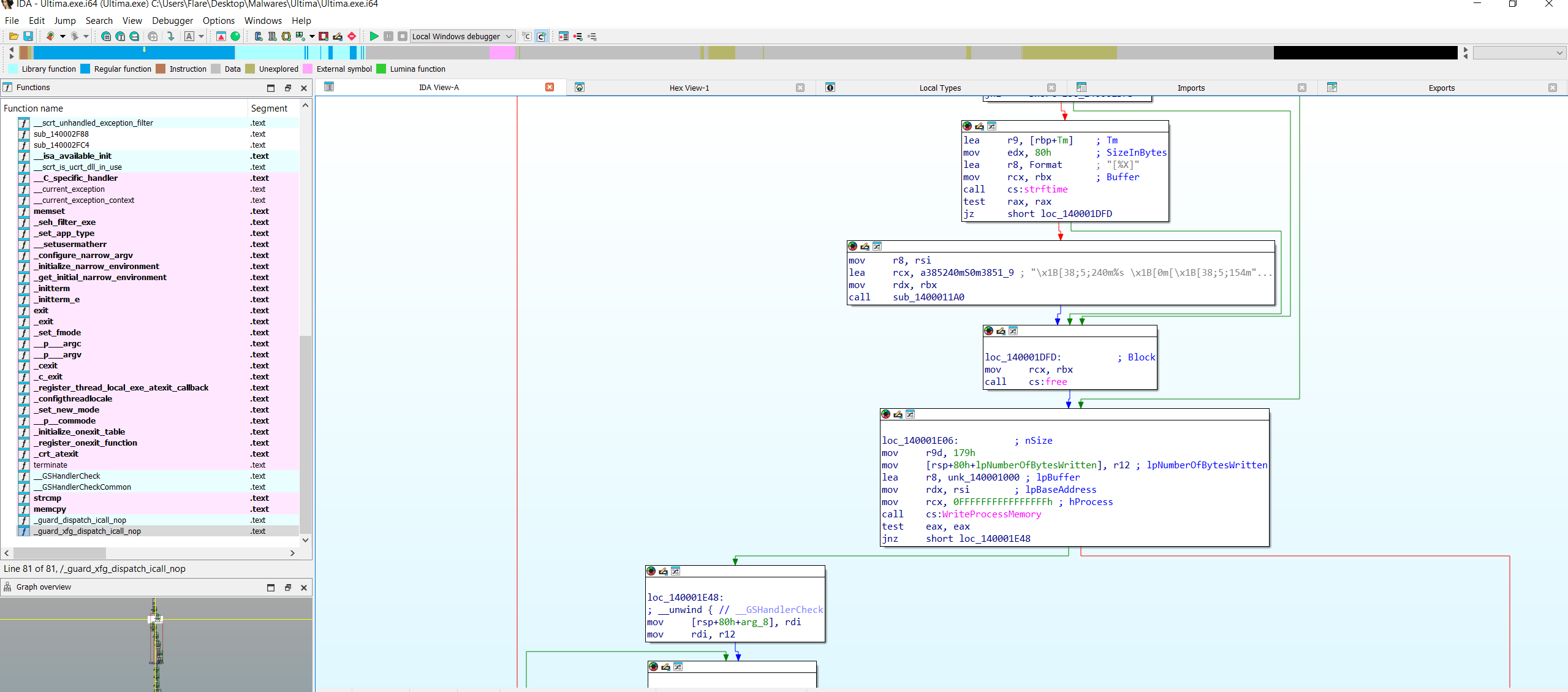
- There are many methods of process/thread injection, this one creates a thread using the space created by the Virtualalloc(This space is filled using the WriteProcessMemory function)
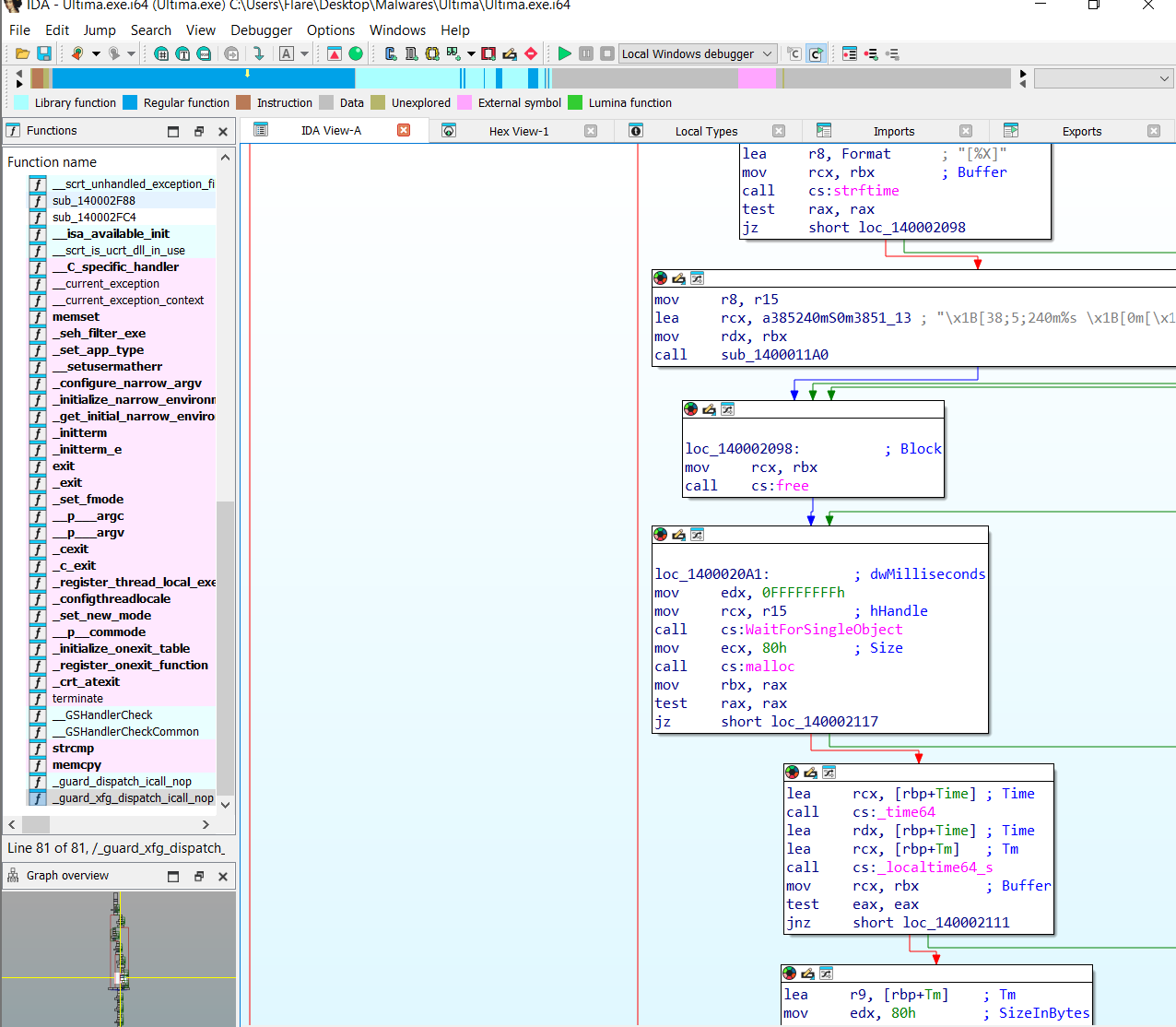
- After creating the thread we use WaitForSingleObject to execute this thread.
- As to what exactly it executes we have to analyze the byte code that was written to a thread using the WriteProcessMemory function. (but we can reasonably guess that it spawns a message box)
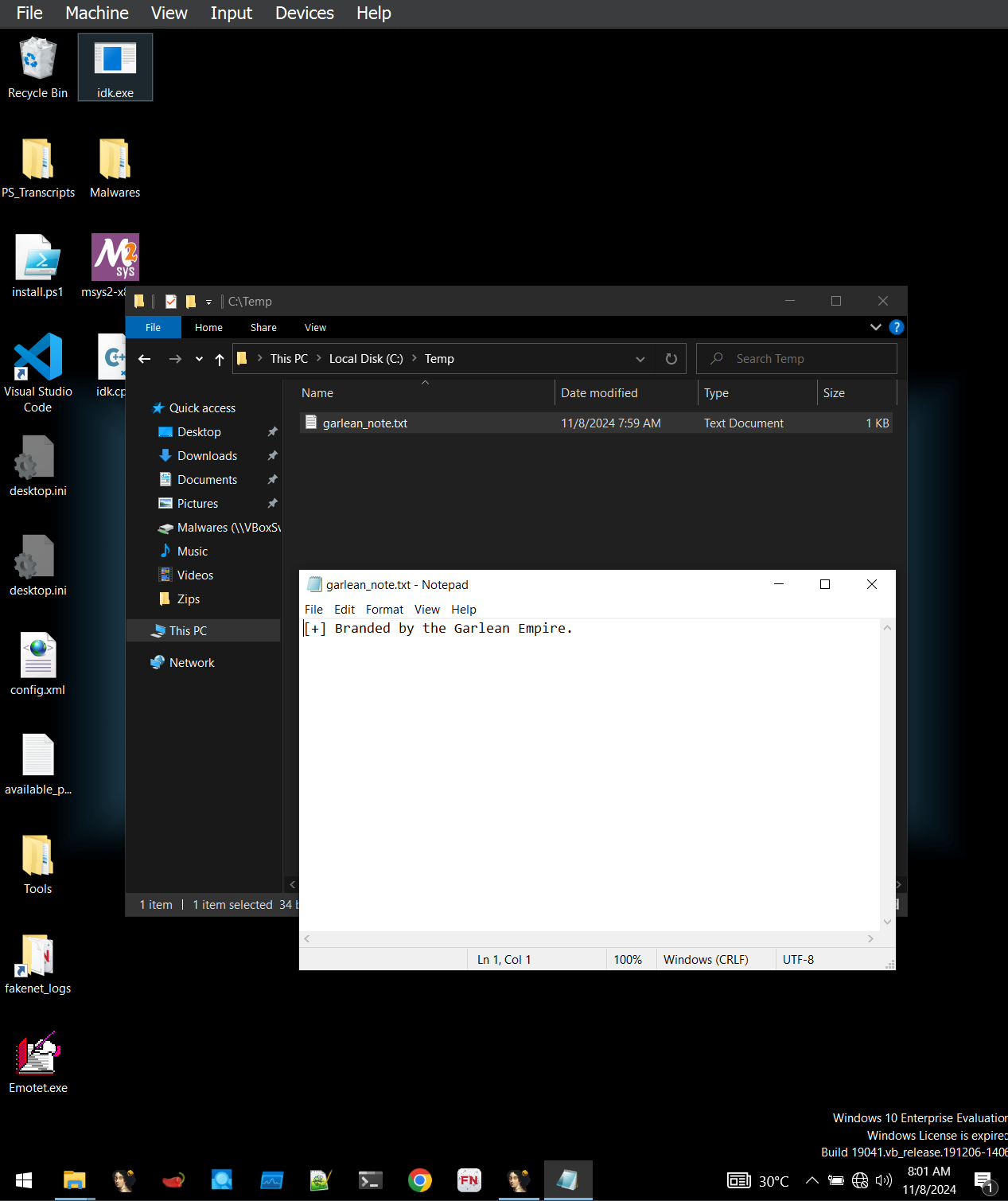
- After this, we can also observe a CreateFile call, and a file name called garlean_note.txt at the location C://Temp with the contents “/[+/] Branded by the Garelean Empire.”
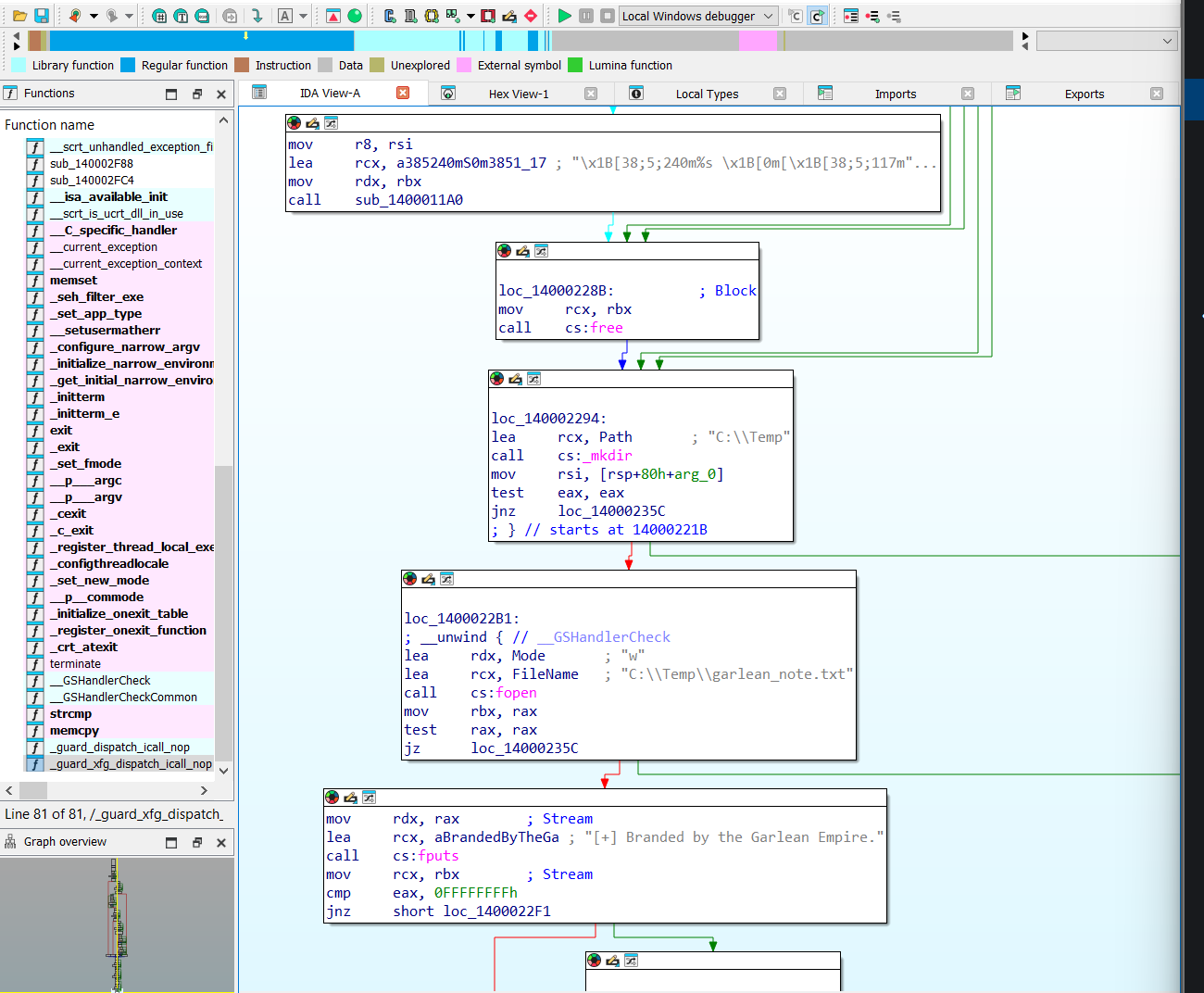
- After this the executable ends.
Advanced Dynamic Analysis
- There is no need to analyze this program using a debugger, although you can.
- I did not find anything new while using a Debugger.
Output of the Program
- Now that we have obtained the values for the username and password we can go ahead and execute the program to observe what it does.
- This concludes the analysis of Ultima malware.
Thank You!